
Package Manager in Windows
Introduction to Package Managers
Package managers are tools that simplify the installation, update, and removal of software packages on a computer system.
This is similar to how apps are installed on Android and iOS phones through their respective app stores. Just like you select and install apps seamlessly from the app store, package managers simplify software installation on computers.
Package Manager Benefits
Android/iOS Play Store: These platforms contain millions of verified applications, offering users a convenient and secure way to install their desired apps.
Key advantages include:
- Secure and curated list of application available
- Automation: Time-saving benefits with automatic updates and easy upgrades to the latest applications.
- Standardization: Maintain a consistent software environment with standardized installations.
- Utilize a single window for installing, upgrading, and uninstalling all applications.
- Rest assured with validated, trusted, and secure applications, free from viruses and malware.
- Save time by installing and upgrading applications from a single, efficient platform.
- Stay Up-to-Date of your favorite applications.
- Save time and effort through automation
- Applications are consistently installed with the same settings across multiple computers, maintaining uniformity in application and installation configurations.
References:
- https://docs.chocolatey.org/en-us/why
- https://play.google/about/howplayworks
- https://developer.apple.com/app-store/features/
| Platform | Application Store |
|---|---|
| Microsoft Windows 3rd Party | Chocolatey |
| Android | PlayStore |
| Apple iOS | AppStore |
| Microsoft Windows | Microsoft Store |
| Ubuntu Linux | apt-get |
| RedHat Linux | yum |
Automation with Package Managers
Package managers automate the software management process by handling dependencies, tracking installed packages, and providing a centralized repository of available software packages. This automation saves time and effort by eliminating the need for manual intervention in software installations and updates.
With a package manager, you can easily install, update, and remove software packages with a few simple commands. This automation ensures that software installations are consistent and reproducible across different systems, making it ideal for managing software on multiple machines.
Chocolatey: Windows Package Manager of Choice
Chocolatey (chocolatey.org) is a popular package manager for Windows that simplifies software management. It is built on top of the NuGet infrastructure, which is widely used in the .NET development community. Chocolatey provides a command-line interface (CLI) and a vast repository of software packages.
Some other alternative package managers for Windows: winget, scoop
Why choose Chocolatey for Windows
- Simplifies software installations and updates
- Offers a vast repository of packages
- Provides a consistent and automated approach to software management
- Integrates well with existing Windows tools and workflows
Installing Chocolatey
System Requirements
- Windows 11
Installing Chocolatey
To install Chocolatey, follow these steps
Open elevated command prompt
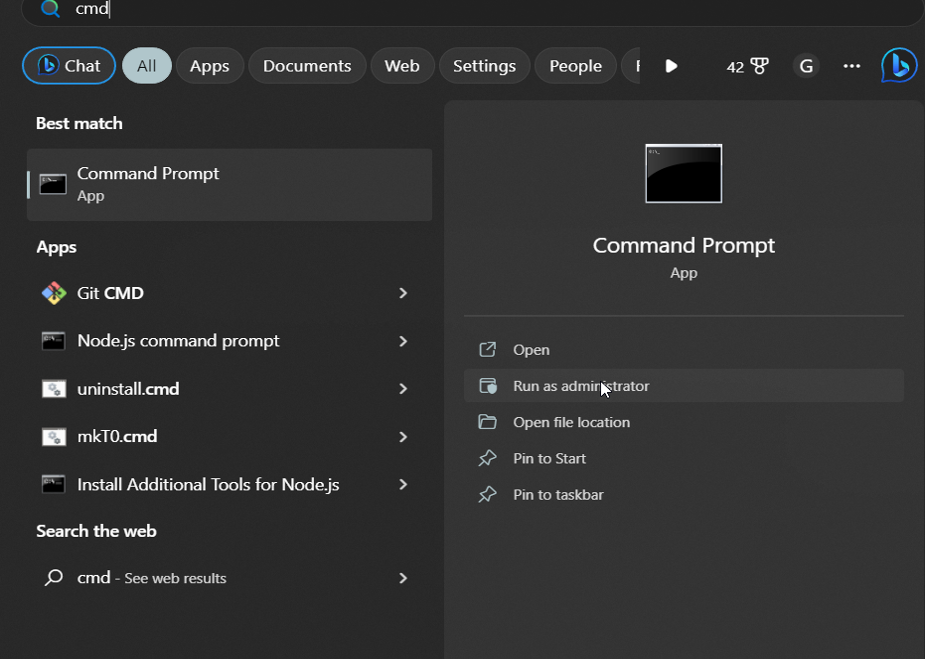
Run the following command in command prompt
@rem install chocolatey, run this script from "Administrator command prompt"
@"%SystemRoot%\System32\WindowsPowerShell\v1.0\powershell.exe" -NoProfile -InputFormat None -ExecutionPolicy Bypass -Command "[System.Net.ServicePointManager]::SecurityProtocol = 3072; iex ((New-Object System.Net.WebClient).DownloadString('https://community.chocolatey.org/install.ps1'))" && SET "PATH=%PATH%;%ALLUSERSPROFILE%\chocolatey\bin"
@rem don't wait for manual prompt, proceed without confirmation
choco feature enable -n=allowGlobalConfirmationInstalling FireFox using Chocolatey
Searching for Packages
- Visit the Chocolatey website (https://chocolatey.org/packages) and search for packages using the search bar.
- Use the Chocolatey CLI with the command:
choco search firefoxInstalling a Package
- To install a package using Chocolatey, use the following command:
choco install firefoxUpdating Packages in Chocolatey
Checking for Outdated Packages
- To check for outdated packages in Chocolatey, use the following command:
choco outdated- This command will display a list of installed packages that have newer versions available.
Updating a Package
- To update a package in Chocolatey, execute the following command:
choco upgrade firefox- To upgrade all the packages in Chocolatey, Run the following command in elevated command prompt
@rem Upgrade all applications installed via Chocolatey.
@rem Run this file periodically to keep your system up to date.
choco upgrade all
@rem Delete the new Desktop shortcuts
del c:\users\Public\Desktop\*.lnk
Chocolatey cheat sheet
This is a listing of all of the different things you can pass to choco.
| Commands | Usage |
|---|---|
| choco find | Searches remote packages |
| choco install | Installs packages using configured sources |
| choco list | Lists local packages |
| choco uninstall | Uninstalls a package |
| choco upgrade | Upgrades packages from various sources |
Installing basic Applications
Run the following command to install the basic applications on windows
@rem install base applications on desktops/laptops

@rem install base chocolatey packages
choco install choco-cleaner chocolatey chocolatey-core.extension chocolatey-misc-helpers.extension chocolatey-windowsupdate.extension

@rem install Windows utilities
choco install 7zip.install notepadplusplus notepadplusplus.install greenshot curl Everything microsoft-windows-terminal

@rem install browsers and internet utilities
choco install GoogleChrome Firefox Filezilla

@rem install PDF utilities
choco install pdfsam qpdf sumatrapdf

@rem install graphics/imaging applications
choco install imagemagick.app irfanview irfanviewplugins paint.net vlc

@rem install conferencing applications
choco install webex-meetings zoom zoom-client

@rem install sysadmin apps
@rem choco install putty putty.portable winscp winscp.install

@rem install development apps
@rem choco install heidisql vscode vscode.install
Upgrading all installed applications
To be run periodically to ensure all installations are up to date
@rem Upgrade all installed packages
choco upgrade all
@rem Delete the new Desktop shortcuts
del c:\users\Public\Desktop\*.lnk
@rem Clean chocolatey cache, needs "choco install choco-cleaner"
\ProgramData\chocolatey\bin\choco-cleaner.bat
Applications and their purpose
The list of application and their purpose are attached below
| S.no | Category | Apps | Purpose |
|---|---|---|---|
| 1 | Windows utilities | 7zip | A file archiver and compression utility. |
| Notepad++ | An advanced version of notepad with more features | ||
| Greenshot | A screenshot capture tool | ||
| Curl | A command-line tool for transferring data over the internet. | ||
| Everything | It helps to search files or folders anywhere within the computer quickly. | ||
| Windows Terminal | A modern terminal emulator for windows | ||
| 2 | Browsers | Google Chrome | |
| Firefox | |||
| Filezilla | FTP tool to transfer files over internet | ||
| 3 | PDF utilities | pdfsam | PDF editing and splitting tool |
| qpdf | PDF conversion tool | ||
| SumatraPDF | A lightweight PDF viewer | ||
| 4 | Graphics apps | Image magick | |
| Irfanview | |||
| Paint | |||
| VLC | |||
| 5 | Conferencing apps | Webex | |
| Zoom | |||
| 6 | Sysadmin apps | Putty | An SSH client that can be used to connect to remote servers. |
| Winscp | File transfer tool to transfer files between computers & servers | ||
| 7 | Development apps | Heidisql | Administrator tool for databases |
| Vscode | Code editor with large no of community plugins |